EasyFrame AI

Take Me there

Need help with your EasyFrame saw? Ask me anything

View a short overview below

EasyFrame AI Conversations

When you type a question into the EasyFrame AI it will walk you through how to solve your question step-by-step. It taps into its database and uses an advanced language model to provide instructions.
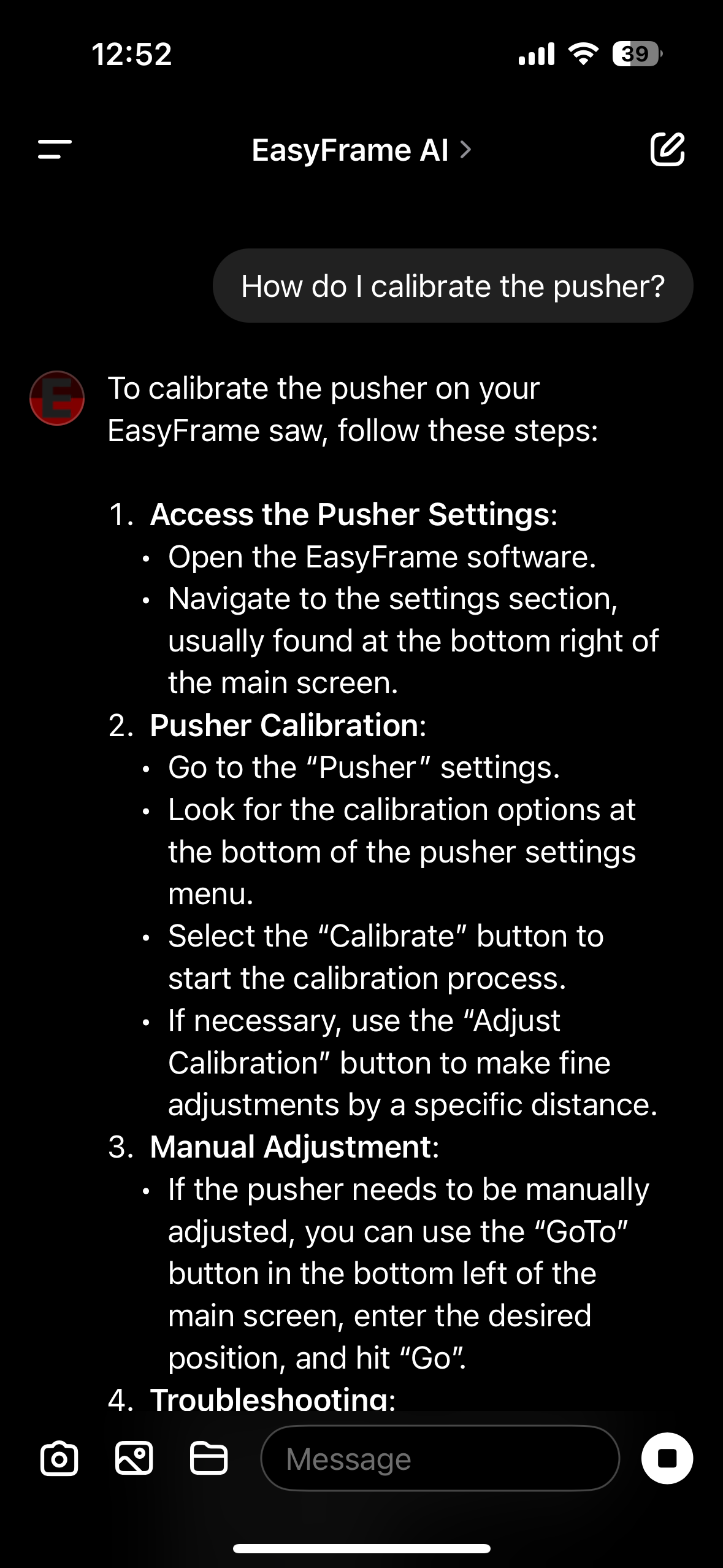
Screenshot of instructions on how to calibrate an EasyFrame saw pusher, including steps to access settings, perform calibration, manual adjustment, and troubleshooting.
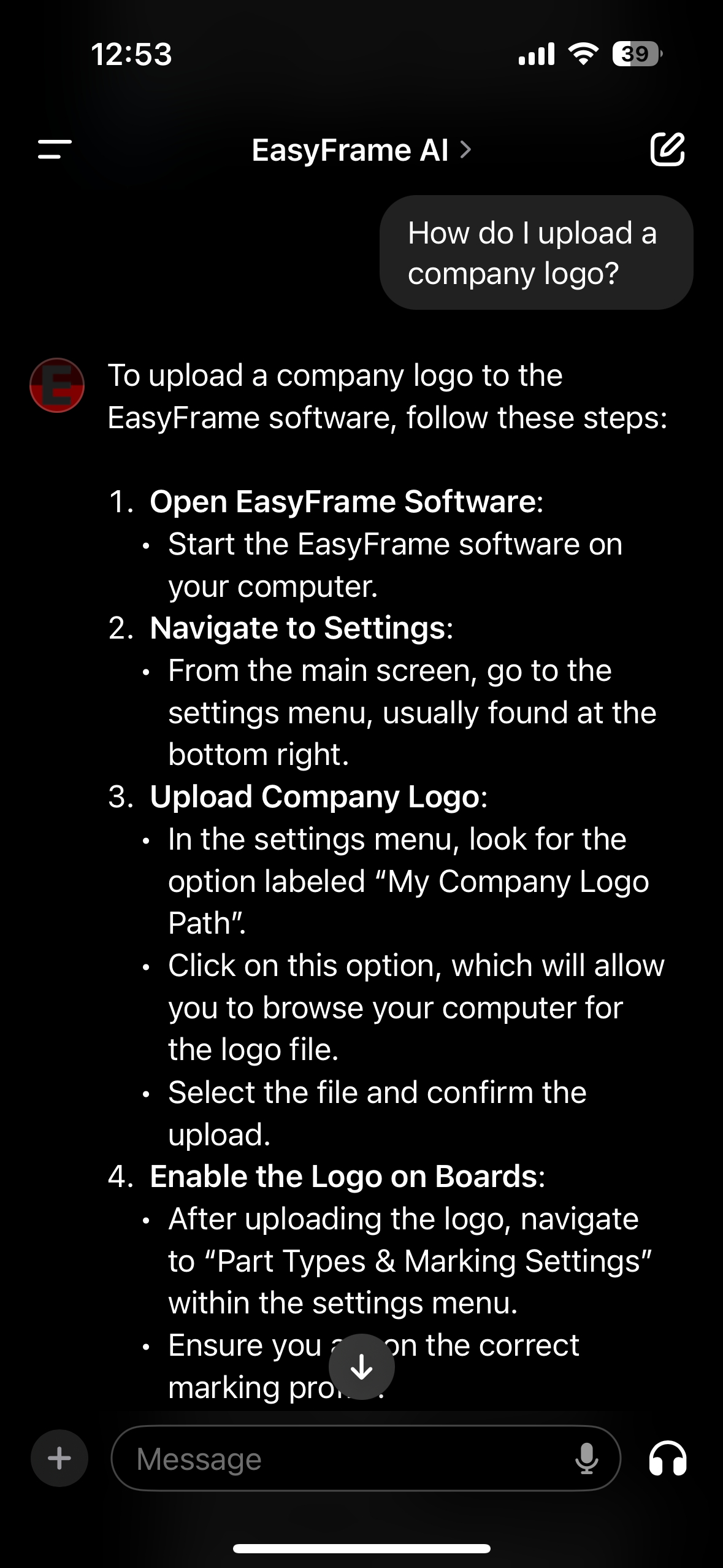
Screenshot of EasyFrame AI chat showing instructions on how to upload a company logo, with a dark-themed interface, text, and a red and black EasyFrame logo icon.

EasyFrame AI Image Recognition

When you send an image to the EasyFrame AI, it will analyze the image using its sophisticated image recognition algorithm to understand what it's looking at. It then uses its database to figure out how to answer your question.
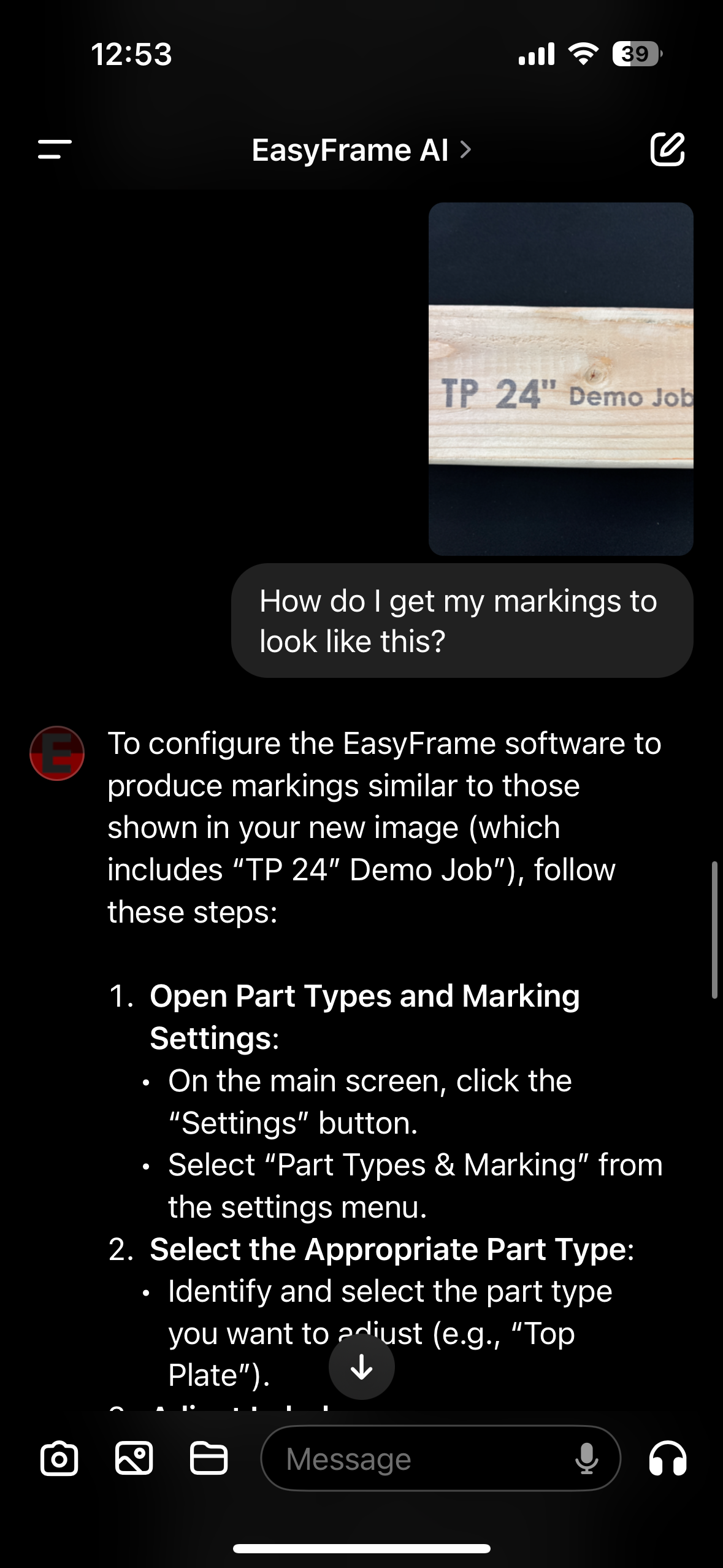
Close-up of a 24-inch wooden board with the text "TP 24" Demo Job" printed on it, held against a dark background.
Screenshot of a mobile device displaying instructions for adjusting labels, font sizes, and previewing in an app called EasyFrame AI.
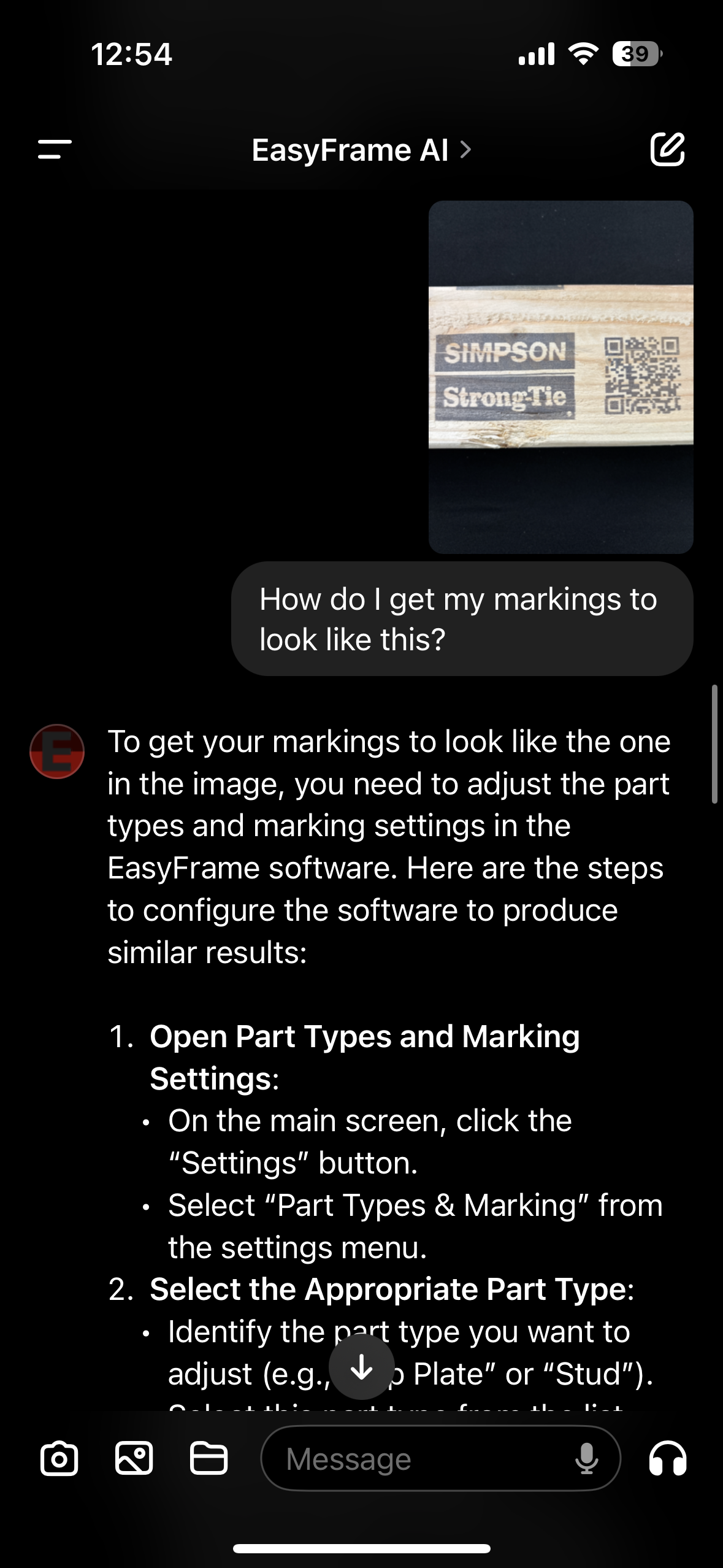
A wooden display board with the words 'SIMPSON' and 'StrongTie' printed on it, and a QR code next to them.
Screenshot of a mobile device displaying instructions for adjusting marking profiles, adding a company logo, enabling and adjusting 2D barcode, and marking labels within the EasyFrame AI application.

EasyFrame AI Voice Mode

The EasyFrame AI voice mode can do anything that we can do while typing but instead, it allows us to have a verbal conversation with the EasyFrame AI.

Young man wearing a white polo shirt sitting at a desk, looking at his smartphone with an hourglass and a piece of wood with printed text in front of him. A gray wall background.
A young man sitting at a black table, looking at his smartphone, with a table tennis paddle and a glass tumbler nearby.

There is so much more to come with the EasyFrame AI.

We are just getting started.